Creating an automatic communication
Automatic communications and mass emails are grouped under the Communications tab on the left-hand side of the homepage.
An automatic communication can contain messages and delivery settings for emails, text messages, and postcards.
Triggers and filters are used to send out the communication to reach the intended client/patient.
Mass emails allow for a large number of emails to be sent to certain clients/patients. With mass emails, you also have the option to send it out right away or schedule a time for the email to go out.
1. When creating an automatic communication, we usually recommend "duplicating" a communication that has already been started in order to avoid starting from scratch. To start a new communication from scratch, click on the green "add a new communication" button in the upper right-hand corner. To duplicate a communication, click on the duplicate icon ( ) to the right of the communication.
2. Once a copy has been created, click on the edit pencil ( ) to the right of the communication.
3. Under the blue Purpose bar give your Communication a Name and Select a Trigger
- This name will not show up on your communication, this is for your eyes only
4. Under the blue Filters bar is where you can set up your filters
- Choosing a trigger and filters will queue the communication to send to your target audience.
5. Next, update the content of the email and/or text message with the information you want to send.
If the format is an email:
- Give your email a Subject - Insert a Variable - Any available variables will be in the Insert Variable drop-down box to the right
- Select a Template: The type of template you select depends on which type of layout you want for your email. Most commonly we use Banner Only. This template formats a banner image at the top of your email, along with a space for your Signature text and image. Basic is also used often for a quick brief message such as an email letting all clients know about hour changes or Holiday closures. Use the drop-down menu to view more options.
- Setting up the Body of your email. This is set up similar to a word document so you can edit it as such; change fonts, sizes, colors, etc. You can also add in a variety of variables, hyperlink documents through your Data File Library, and add images from your Image Library.
6. The next section to complete is the delivery schedule. Our standard delivery schedule is the email communication 2 days before the appointment and the text communication 1 day before the appointment for appointment reminders.
7. At the very end of the email and text communications, you have the option to send yourself a test, preview message, or preview recipients before enabling the communication.
8. To enable the communication, make sure the "disabled" box is unchecked under the title of the communication. Make sure you click on the green Save button before exiting the page. 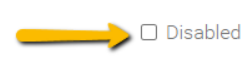
When choosing filters and triggers, it is important to think about which clients/patients you are trying to reach. They can be a little tricky and overwhelming at times, so never hesitate to reach out to our Support team. We are here to help! Email us at support@allydvm.com.